
Best APN Setting for TM in 2026
Fast Internet, Gaming & Streaming Setup for Android & iPhone
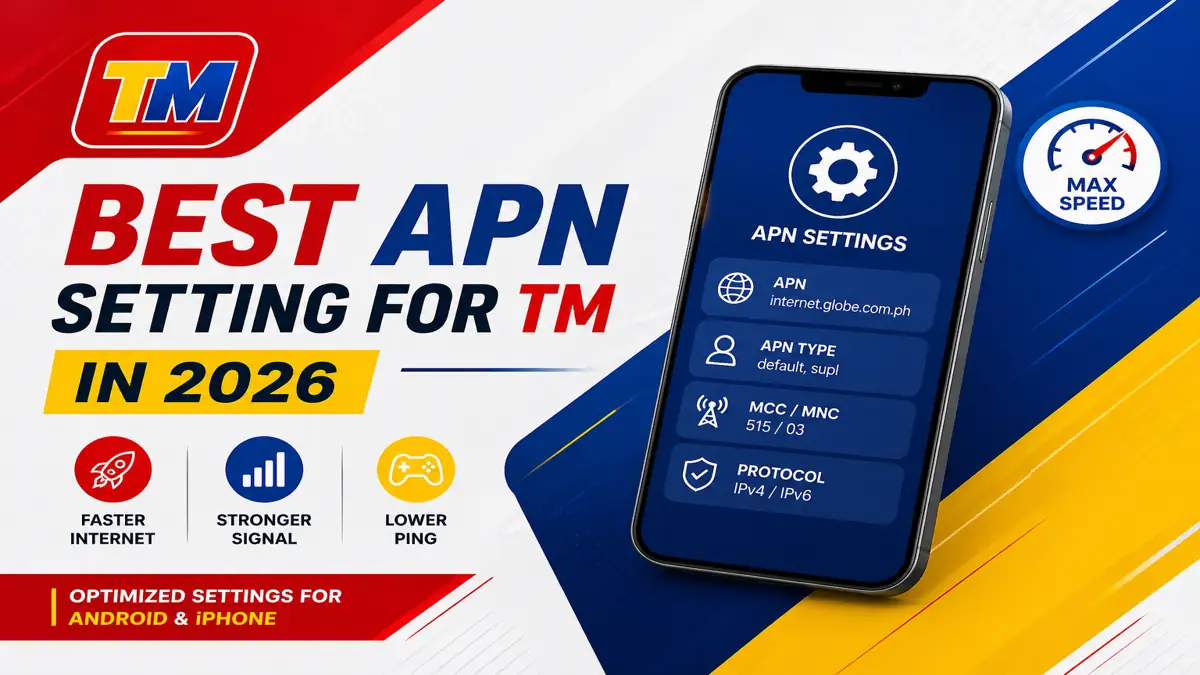
If you are experiencing slow internet or unstable connections, updating your best APN settings for TM can significantly improve your internet speed and resolve network issues. Many users ignore APN settings, but they play a crucial role in ensuring smooth browsing, gaming, and streaming. Updating your APN settings is simple. It is available in both Android and IOS devices to improve signal strength.
In this guide, you will learn everything about TM APN settings, including Android and iPhone configurations, troubleshooting tips, and how to reset them properly.
What is an APN and Why It Matters for TM Users
APN is an access point name; it acts as a gateway between your mobile network and the internet. Without the correct APN settings, your device may struggle to connect properly for TM users. You need to understand the correct APN settings to control your network strength. An incorrect APN lead, delayed messages, slow browsing, or failed app connections.
Or setting up the correct APN configuration is key:
TM APN Settings for Android
Setting up APN on Android devices is simple and easy; you just need to follow the right steps to experience smooth and better performance without complications.
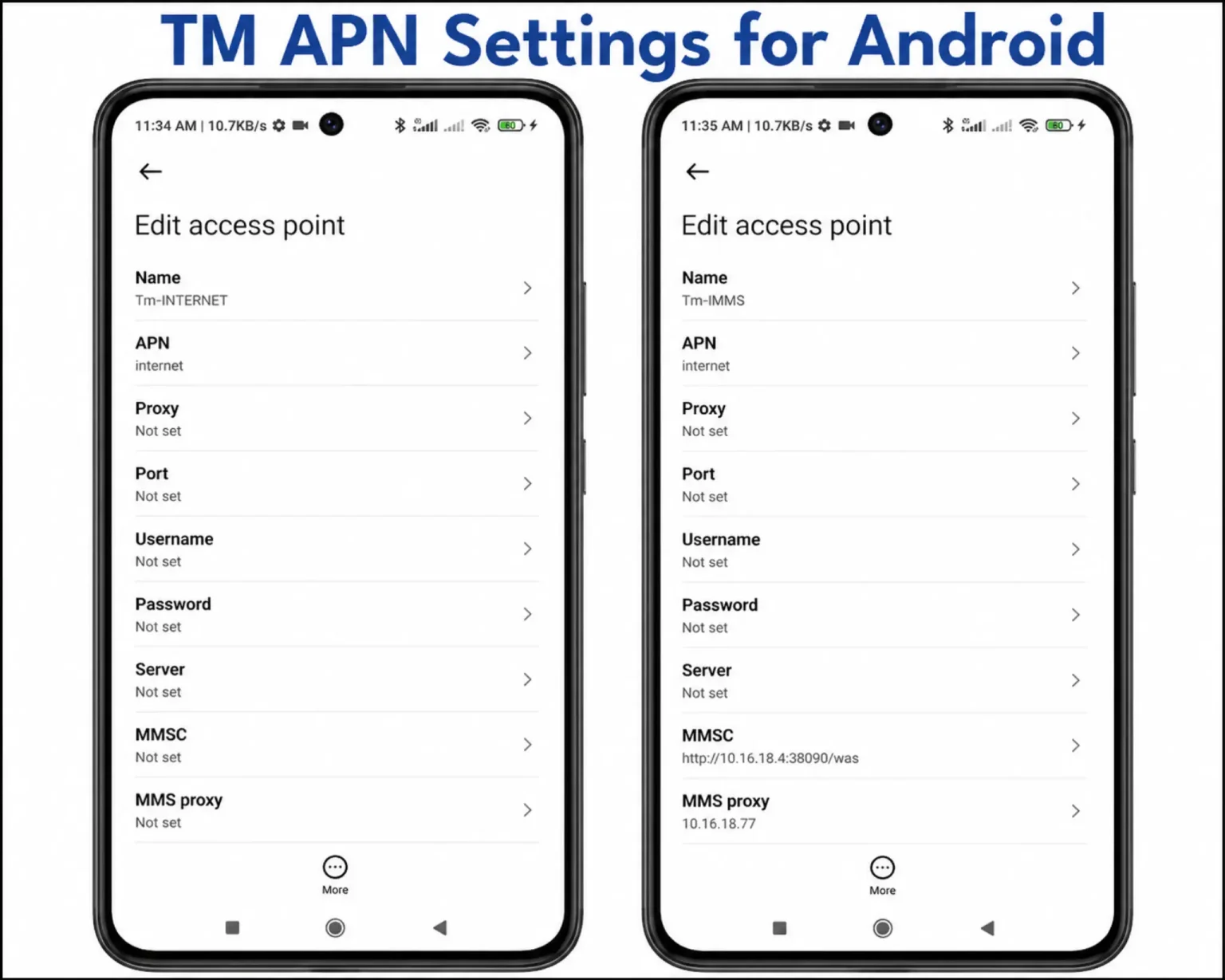
TM APN Configuration on Android Device
- Go to settings
- Tap on the mobile network
- Select access point names APN
- Press the “+” icon to add a new APN.
- Enter the correct TM APN settings
- Save and select a new APN
TM Default APN Settings (For Android)
Here are the default settings you should use to set up your APN. Make sure you set the correct information.
Related Articles







| Field | Value |
|---|---|
| Name | TM |
| APN | internet |
| Proxy | Not set |
| Port | Not set |
| Username | Not set |
| Password | Not set |
| Server | Not set |
| MMSC | Not set |
| MMS Proxy | Not set |
| MMS Port | Not set |
| MCC | 515 |
| MNC | 03 |
| Authentication Type | None |
| APN Type | default, supl |
TM APN Settings for iPhone
TM APN is also available on iPhone; if you’re an iOS user, make sure to follow the correct APN settings to avoid major problems.
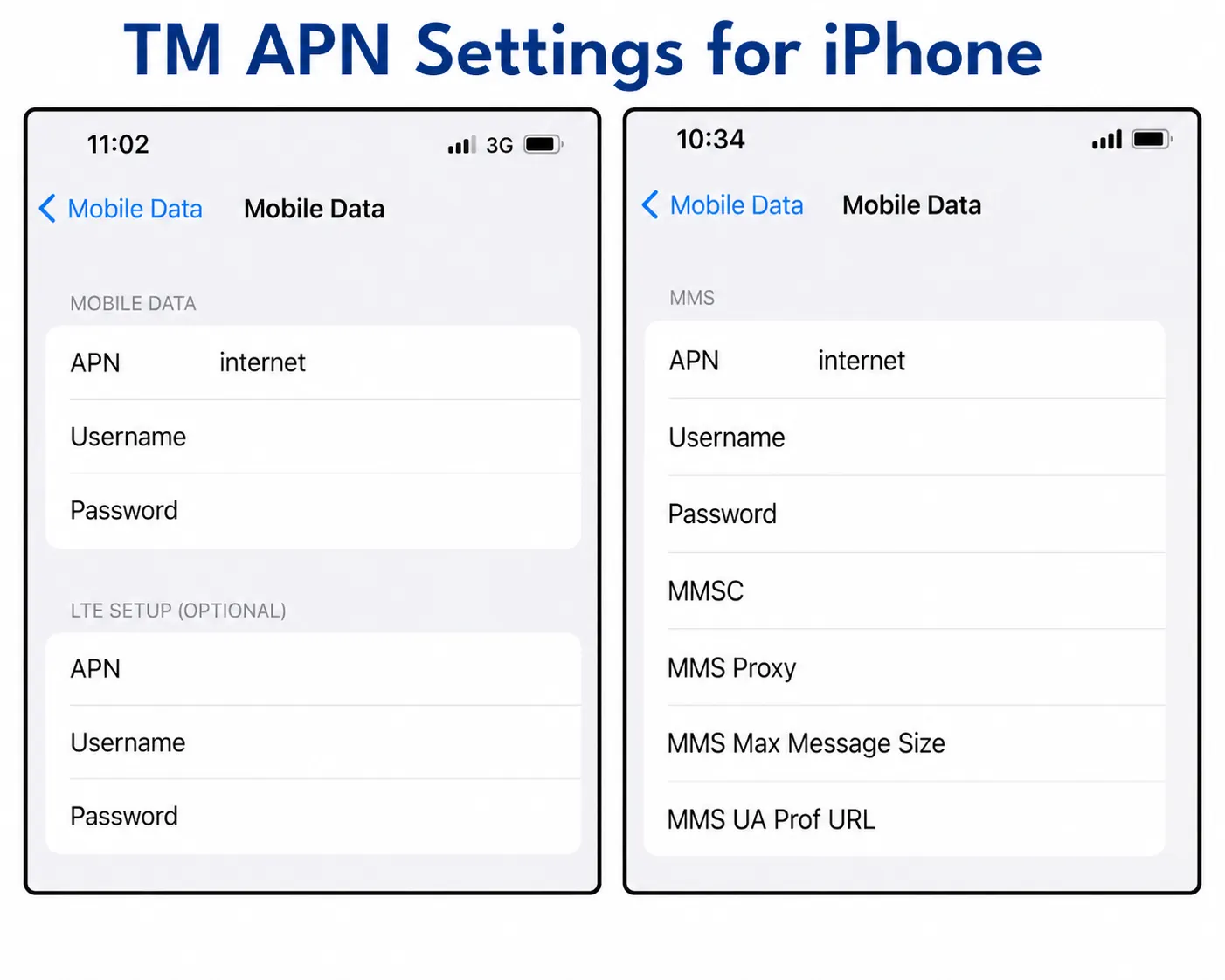
TM APN Setup on iPhone Mobile Data Settings
- Open settings
- Tap Mobile Data → then Mobile Data Options.
- Choose a mobile data network.
- Under the APN section, enter the values shown below.
- Leave the username and password blank.
- Tap the Back button to save your configuration
TM Default APN Settings (For iPhone)
| Field | Value |
|---|---|
| Name | TM Internet |
| APN | internet.globe.com.ph |
| Username | Not Set/leave blank |
| Password | Not Set/leave blank |
| MMSC | Not set (for basic data) |
| MMS Proxy / MMS Port | Not set / leave blank |
| MCC | 515 |
| MNC | 03 |
| APN Type | default, supl (for internet/data) |
| APN Protocol | IPv4 |
| APN Roaming Protocol | IPv4 |
How to Reset TM APN Settings
If your internet is still not working properly and your browser loads slowly, resetting your APN can help you gain proper signals. Sometimes, it needs a short boost to catch signals and speed up your internet.
- Go to settings
- Tap network and internet → Mobile Network
- Select APN
- Tap the three dots (⋮) at the top right corner
- Choose reset to default
- Restart your device to save the new settings
Restore TM APN Settings on iPhone
- Go to settings
- Taap general
- Select transfer or reset iPhone
- Tap reset
- Choose reset network settings
How to Delete TM Access Point Name Settings
Sometimes, creating multiple APNs can cause issues like slow browsing, mobile lagging, and delayed messages. To delete APN settings, follow these steps:
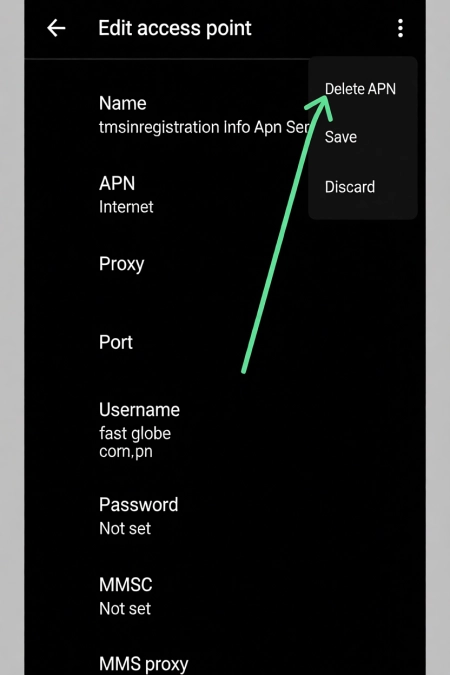
Delete Unwanted TM APN from Settings Menu
- Go to the settings
- Open access point APN setting
- Select the unwanted APN
- Tap the three dots in the top right corner
- Tap delete
- Restart your device
Best TM APN Settings for Fast Internet AND Gaming
For users who want faster speeds while playing games and low ping, use these optimized APN fast internet settings.
| Field | Value |
|---|---|
| Name | TM Fast Internet |
| APN | internet.globe.com.ph |
| Proxy | Not Set |
| Port | Not Set |
| Username | Not Set |
| Password | Not Set |
| Server | Not Set |
| MMSC | Not Set |
| MMS Proxy | Not Set |
| MMS Port | Not Set |
| MCC | 515 |
| MNC | 03 |
| Authentication | Type None |
| APN Type | default, supl |
| APN Protocol | IPv4 |
| APN Roaming Protocol | IPv4 |
| Bearer | LTE/5G |
| MVNO Type | None |
TM APN Settings Troubleshooting Tips
While setting up your APN access point names, sometimes your internet is still slow. To improve the speed, try these fixes:
- Restart your mobile phone
- Turn on and off your airplane mode
- Check your data balance
- Update your phone software
- Reset your APN settings
- Delete unwanted APN
- Reinsert the SIM card
Related TM Promos & Guides
Conclusion
If you experience slow internet, delayed messages, or weak network signals, always check your TM APN settings and make sure to add the correct APN details to avoid problems while playing games or watching streaming. APN settings are essential for a fast and stable internet connection, whether you are using an Android or an iPhone. Correct APN settings can improve browsing speed, gaming performance, and overall connectivity.